Mastering Your Digital Art with 12 Decorative Circles Procreate Stamps
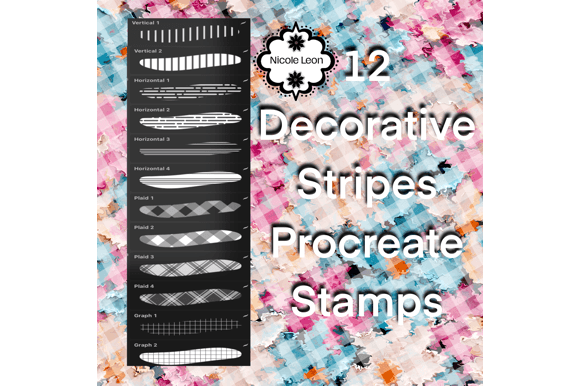
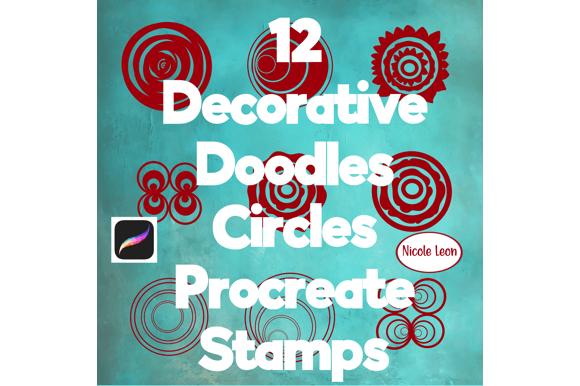
Digital illustration on the iPad has revolutionized how we create, offering a level of flexibility that traditional media simply cannot match. At the heart of this creative freedom are tools like the 12 Decorative Circles Procreate Stamps, a specialized brush set designed to add texture, rhythm, and professional polish to your artwork. These clean, easy-to-use hand-drawn stamps are engineered specifically for the Procreate app, leveraging the precision of the Apple Pencil to deliver organic results with digital efficiency. Whether you are a seasoned graphic designer, a hobbyist journaling on weekends, or an entrepreneur crafting social media graphics, understanding how to properly integrate these assets into your workflow is essential for maximizing their potential.
However, even with high-quality assets, many creators stumble over avoidable pitfalls that diminish the final output. The most common misunderstanding arises from the file format itself. These stamps come in the .brushset format, which is exclusive to the Procreate ecosystem. A frequent error occurs when users attempt to import these files into other drawing applications or expect them to work on desktop software without an iPad. This not only wastes time but can lead to frustration regarding "broken" downloads. Before purchasing or downloading, always verify that you have the Procreate app installed on your iPad. This tool is not a universal image file; it is a functional code package that tells Procreate how to render a specific stroke. Recognizing this distinction ensures you are setting yourself up for success rather than compatibility headaches.
Avoiding the Trap of Uniformity
One of the greatest strengths of hand-drawn stamps is their inherent imperfection, yet a surprising number of artists use them in a way that strips away this charm. When utilizing the 12 Decorative Circles Procreate Stamps, a common mistake is relying on a single size and opacity for every element in a composition. This approach often results in a flat, repetitive look that feels more like a clip-art collage than a cohesive piece of art. Because these stamps are designed to be versatile, failing to experiment with their dynamic settings limits their expressive range.
To avoid this sterile aesthetic, treat each stamp as a living element of your design. Procreate allows you to adjust the size, opacity, and flow of any brush in real-time. Try layering circles with varying levels of transparency to create depth; a faint, large circle in the background can provide subtle texture, while a bold, opaque circle in the foreground draws the eye. Furthermore, do not hesitate to change colors. While you might receive these stamps in black by default, their true power lies in their ability to adopt any hue from your palette. By rotating the canvas or slightly altering the angle of your Apple Pencil, you can also introduce natural variation in the stroke texture, mimicking the unpredictability of ink on paper.
Technical Missteps and Workflow Efficiency
Beyond artistic choices, there are technical nuances that significantly impact your workflow efficiency. Many beginners overlook the importance of organizing their layers when using stamp brushes. Dropping dozens of decorative circles onto a single layer can make editing a nightmare later. If you decide to move or recolor a specific cluster of circles, you may find yourself erasing parts of the design you wanted to keep. A better approach is to establish a dedicated layer group for your decorative elements. This keeps your main illustration intact and allows for non-destructive editing. You can easily apply blending modes like "Multiply" or "Overlay" to the entire group, integrating the circles seamlessly with the underlying artwork without permanently altering pixel data.
Another area where users often falter is in the evaluation of resolution and scalability. Since these are vector-like procedural brushes within Procreate, they generally scale well, but pushing them to extreme sizes can sometimes reveal pixelation depending on your canvas DPI settings. Before committing to a final export, zoom in to 100% to inspect the edges of your stamped circles. If they appear jagged, it may be necessary to increase your canvas resolution at the start of the project. This proactive check saves the disappointment of discovering quality issues only after hours of detailed work.
Making Informed Decisions Before You Download
When considering adding the 12 Decorative Circles Procreate Stamps to your library, it is crucial to assess your actual needs versus fleeting trends. Ask yourself if your current projects require organic, hand-drawn textures or if you need rigid, geometric perfection. These stamps excel in contexts like branding packages for lifestyle businesses, editorial illustrations, and digital planning, where a human touch adds value. However, if your work demands strict architectural precision, these might not be the primary tool for your core structures, though they could still serve as excellent accent details.
Additionally, consider the learning curve associated with new brush sets. While these particular stamps are marketed as "clean and easy to use," mastering them still requires practice. Do not expect immediate mastery on the first tap. Spend ten minutes creating a "swatch sheet"—a practice canvas where you test every brush in the set at different sizes and pressures. This simple exercise builds muscle memory and helps you understand which of the twelve variations works best for specific tasks, such as framing text, creating bullet points, or adding background noise.
Ultimately, the value of any digital asset lies in how effectively it solves a problem or enhances a vision. The 12 Decorative Circles Procreate Stamps offer a robust solution for adding warmth and character to digital creations, provided they are used with intention. By respecting the file format constraints, embracing variability in application, and maintaining an organized workflow, you transform these simple tools into powerful allies. Avoid the urge to rush the process; instead, take the time to explore the full capacity of your Apple Pencil and the Procreate interface. With the right approach, these decorative elements will elevate your work from standard digital drawings to compelling, professional-grade visuals that resonate with your audience.